
Real-time Overlay
Live display of keystrokes, shortcuts, clicks and scroll wheel on screen.
Keystroke & Mouse Visualizer
Every keystroke and click, live in the corner of your screen.
Verified on Microsoft Store · 100% Free
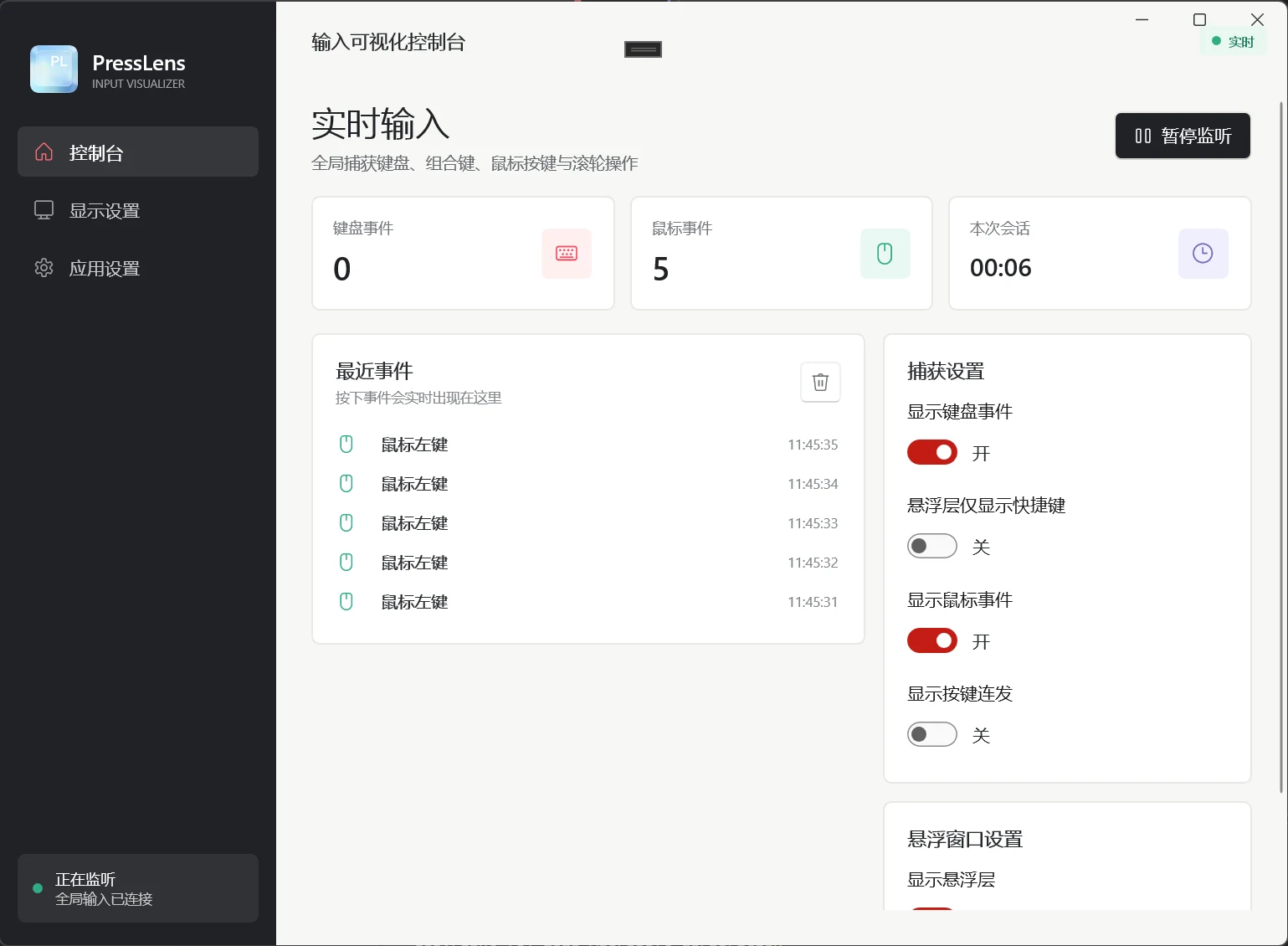
PressLens is a clean desktop tool that puts your keystrokes and mouse clicks right on screen in real time. Perfect for tutorial recordings, live streams, software walkthroughs, and online presentations.
The control console counts total keystrokes, clicks, and session time, while the customizable overlay displays live inputs on screen. Keyboard and mouse events toggle independently, and custom accent colors keep visuals clear.
All processing stays strictly local on your computer. The app is fully offline, never collects personal inputs or private data, and carries zero background bloat.
Live display of keystrokes, shortcuts, clicks and scroll wheel on screen.
Always on top of any app, with adjustable position, width, opacity and font size.
Keyboard events, mouse events and session time counted separately, cleared in one click.
Keyboard, mouse and key repeat are independent; turn off what you do not need.
One colour for keyboard events, one for mouse, so viewers can tell them apart instantly.
No network, no uploads; completely private, lightweight and bloat-free.
| Version | v1.1.1 |
|---|---|
| System | Windows 10 / 11 |
| Pricing | 100% Free · Microsoft Store Verified |
| Network | Fully offline |
| Privacy | On-screen display only, zero data collection |
| Footprint | Lightweight with minimal CPU and RAM footprint |
Search for PressLens - Keystroke & Mouse Visualizer, install, then launch it from the Start menu.
Press a few keys and watch the keyboard and mouse counters move separately; disable what you do not need.
Set position and font size, confirm with the preview, then start recording or streaming.